CloudScape

Your Local PC. Your Cloud. One Seamless Experience.

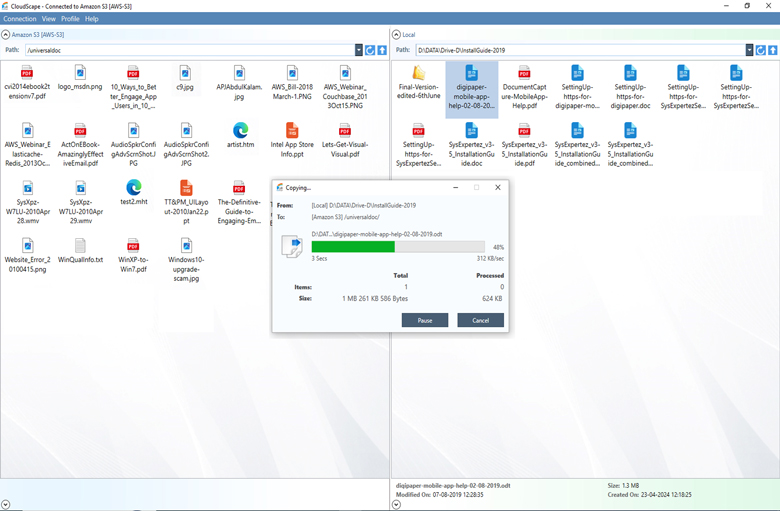
Easy transfar of files and folders between cloud & local storage. Just drag & drop with folder hierarchy intact.

Free Trial Buy Now

Overview

SARANGSoft CloudScape is a Windows-based cloud storage integration tool that seamlessly connects local PC/network storage with AWS S3, Microsoft Azure, and Google Cloud. Its Windows Explorer-like interface makes it easy to transfer, manage, and sync files and folders between local and cloud storage using drag-and-drop, standard shortcuts, and scheduled or on-demand synchronization.

Key Features

Unified Cloud & Local Storage Access

Connect to multiple cloud-storage environments, including Amazon S3, Microsoft Azure Storage and Google Cloud Storage (GCS)

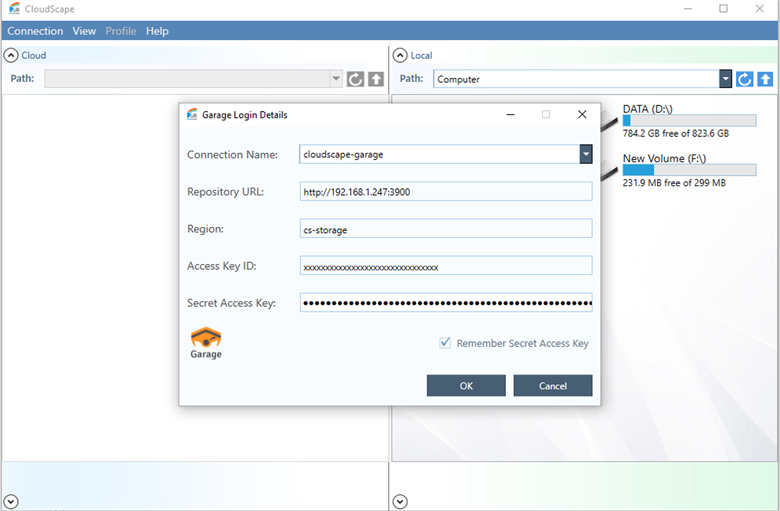
Enables connections for Garage and RustFS S3-compatible private cloud storages

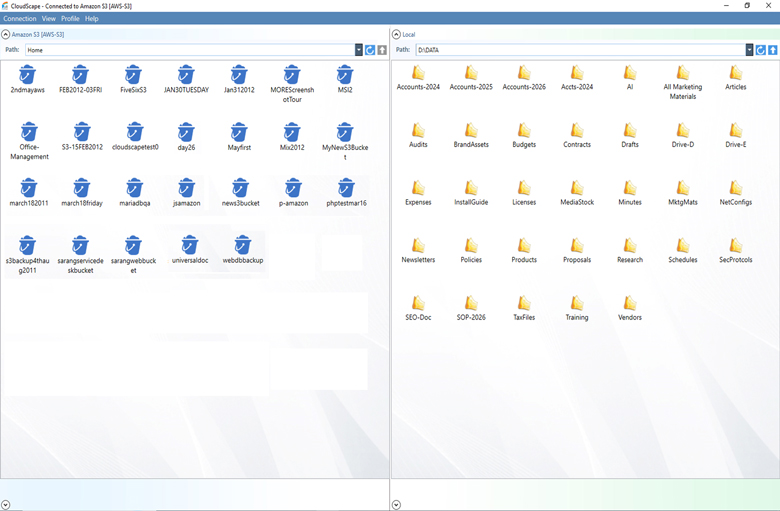
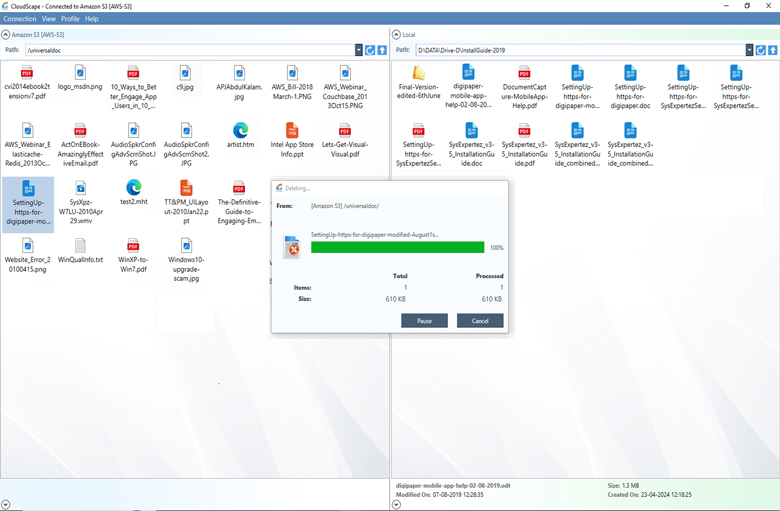
Use a Windows Explorer-like, dual-pane interface: one pane for cloud storage and one for local storage

Browse local drives, folders and, where available, computers and shared folders on the Windows network

Navigate using independent path/address bars, location drop-downs, refresh controls and familiar file/folder views

Use the user's own cloud account credentials rather than being restricted to a proprietary storage account

File & Folder Operations and Transfers

Copy and move files and folders between local storage and cloud storage

Copy and move items between locations within a cloud account, including supported buckets or containers

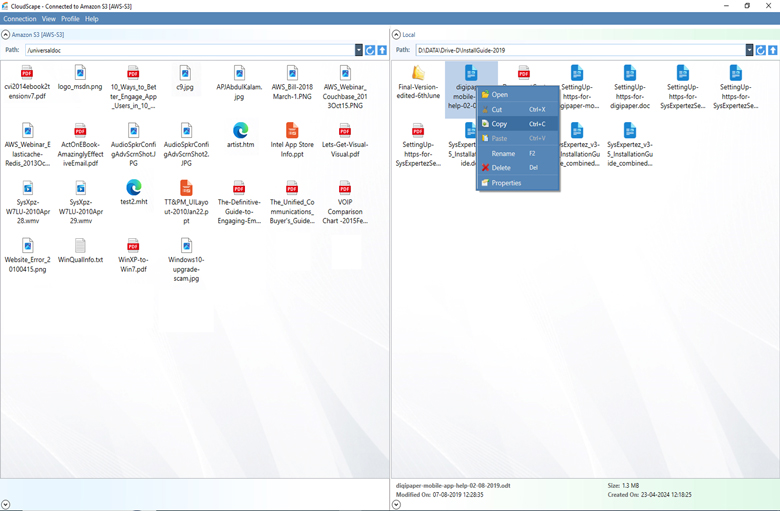
Perform transfers using drag-and-drop, right-click context menus or standard keyboard shortcuts such as Ctrl+C, Ctrl+X and Ctrl+V

Manage files and folders with familiar actions: create folders, open, rename, delete and select multiple items

Browse and sort items by name, size, extension, creation date or modification date

View file, folder, drive and bucket/container properties, including available size, location, timestamps and web-address information

Maintain folder hierarchy when transferring content to cloud storage

Profile-Based Synchronization & Transfer Control

Create named synchronization profiles containing one or more local-source to cloud-destination folder mappings

Define file-type filters and configure synchronization options for profile settings

Run synchronization on demand or schedule it through Windows Task Scheduler

Review synchronization history and open reports for completed or previous sync operations

Monitor per-setting progress and status, and cancel an in-progress on-demand sync

Set general conflict-handling rules: skip, overwrite, overwrite based on destination age, or ask for confirmation

Choose how file-transfer errors are handled: continue with remaining files or stop and request a decision

Cloud Resource Administration & Configuration

Create and delete cloud buckets or containers where supported by the connected provider

Configure provider/account options such as bucket region and storage class for supported services

Inspect bucket/container properties, including location, storage class, item counts, total size and web URL where exposed by the provider

View and manage supported bucket and object permissions/access-control settings

View or edit supported bucket policies, including S3 policies and Google Cloud Storage IAM policies

Configure account-specific settings independently for different cloud connections

Set general transfer preferences, including overwrite behavior and error handling

Benefits

Simpler, More Familiar Cloud Access

An Explorer-style interface and familiar file-management conventions reduce the need to learn provider-specific browsing workflows

Local and cloud locations can be viewed and navigated side by side in a single Windows application

Users can move between local folders, network shares and connected cloud locations without relying solely on separate browser consoles

Support for several cloud and S3-compatible services gives users flexibility to work with the provider that fits their requirements

More Convenient File Movement & Organization

Drag-and-drop, keyboard shortcuts and context menus make routine copy, move and folder-management tasks straightforward

Files can be transferred between local and cloud storage, and between supported cloud locations

Folder hierarchy can be retained in cloud destinations, helping preserve familiar structures

Sorting and property views help users locate content and inspect relevant file or storage details

Repeatable, More Controlled Synchronization

Profiles capture recurring folder mappings so users do not need to set up each synchronization from scratch

Scheduling supports recurring synchronization without requiring the user to initiate every run manually

Progress, status, history and reports make synchronization activity easier to review

Configurable conflict rules let users decide how same-name destination files should be handled

Configurable error behavior helps users choose whether a transfer should continue or pause for intervention

Greater Control Over Cloud Resources

Supported bucket/container, permission and policy tasks can be handled within CloudScape rather than always switching to a provider console

Per-account options allow settings such as region or storage class to differ across connections

Storage properties and metadata provide useful context about cloud resources and their contents

Viewing and editing supported ACLs or policies helps administrators inspect and manage resource access

Look & Feel

Technical Details

A distinct advantage of CloudScape is that it is cloud provider agnostic, i.e., it is not tied to any specific cloud technology or provider (such as Amazon, Microsoft etc.). You are free to use the technology offering of your choice based on your needs vs. the features, quality, price and convenience offered by the cloud service provider. Sign-up for your own user account with your cloud vendor of choice, and specify that CloudScape once. Then you can transfer files and folders between cloud and local storage just as you do between two drives of your PC.

Try it out and see how the boundaries between your local and cloud storage fade away. Storing files in cloud need not be any different, nor has it ever been so easy!